Installation Guide
This page helps you install SwaziLang (compiler) and SwaziPen (browser IDE) so you can start coding right away.
1. Prerequisites
SwaziLang Compiler
Right now SwaziLang do not have an official pre-built cross-platform binaries to just download and install, You will need to build the interpreter from the source to get started. To build from source you need:-
- Any C++ Compiler:
GCC,Clang, orMSVC(install from their official website — but if you have any don't worry) - CMake: For building the project (install from their official website)
- Python 3: Required for
Conan(C/C++dependency manager) - Conan: For dependency management
SwaziPen IDE
To also have SwaziPen IDE you need to have:-
- Node.js: Version 14+ recommended
- pnpm: Node package manager
2. Install SwaziLang
Step A: Install Conan (assuming you already have a c++ compiler, python3 pip and cmake)
pip install conan
# Verify installation
conan --version
Step B: Clone and Build
git clone https://github.com/godieGH/SwaziLang.git
cd SwaziLang

mkdir build && cd build # create a build dir

conan install .. --build=missing --output-folder=. # install dependencies with conan

cmake .. && cmake --build . --parallel # the parallel flag is there to speed up the build process
# Then wait a minute or two for the build process to finish
Step C: Test Installation
./swaziYou should see the SwaziLang REPL prompt.
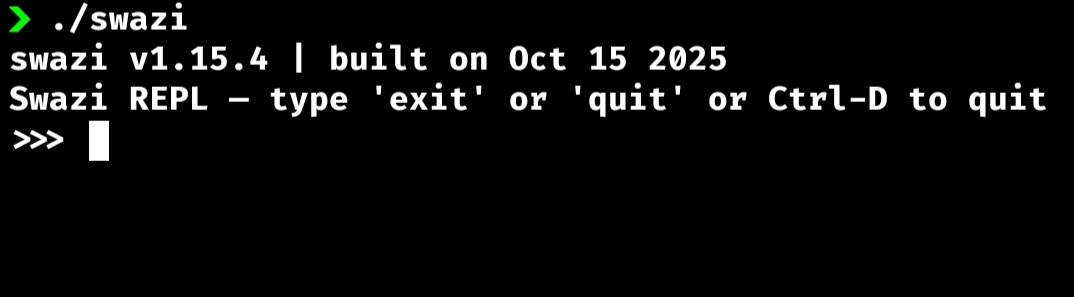
There we go we got the swazi compiler right away, so we can start coding with SwaziLang
It will be a nicer practice to add it to your system path so that it can be ran anywhere and without the
./in ./swazi or with.\in .\swazi.exe(in windows)
steps to add it in system path
- Linux and MacOs
- To check the current system path run
echo $PATH, this shows a list of available system paths. - move or copy the executable to one of the paths, and there you have the executable running anywhere
- Or you could add a new path to the list within your ~/.bashrc or ~/.zshrc with this command
shecho 'export PATH="/path/to/your/local/bin:$PATH"' >> ~/.bashrc # the local bin path should be the absolute path where you kept the swazi executable. for now is in the /..../SwaziLang/build/ (move/copy it if necessary to you custom local bins) # Then reload your shell configuration with source ~/.bashrc # for bash users #or source ~/.zshrc # for zsh users # Verify it works by running swazi without ./ swazi # You will see the repl # or with which which swazi # simple and clear - To check the current system path run
- For Windows
- Using the GUI, easiest. Copy
swaziexecutable to a permanent location (e.g., C:\Program Files\YourApp\ or C:\Tools\ ) - Open System Properties:
- Press Win + X and select "System"
- Click "Advanced system settings" on the right
- Click "Environment Variables" button
- Edit the PATH variable:
- Under "User variables" (for current user) or "System variables" (for all users), find and select "Path"
- Click "Edit"
- Add your directory: 1) Click "New" 2) Enter the full path to the directory containing your executable (e.g., C:\Tools) 3) Click "OK" on all dialogs
- Restart your terminal or Command Prompt
- Verify it works:
- use
where swazicommand on your command prompt - or with
swazito open the repl
- use
- Using the GUI, easiest. Copy
Note: You can just google or search for how to add an executable in System path as per device to understand more
3. Install SwaziPen
Step A: Clone SwaziPen
git clone https://github.com/godieGH/SwaziPen.git
cd SwaziPen

# You can also use npm, ban or yarn (but recommended pnpm)
pnpm install # install dependencies
pnpm link # link it global to use it anywhere
Step B: Build the Client
This right is the process of building the client (The Editor UI)
cd client
pnpm install # install client dependencies
pnpm build # build the client
This generates the client build in the server/public folder.
The next doc-page will pass you through how to use swazipen to write SwaziLang codes
4. Troubleshooting
- CMake not found: Download CMake
- pnpm not found: Install via
npm install -g pnpm - Compiler errors: Make sure your C++ compiler is installed and added to PATH.
- Permission errors: Use
sudoif needed (Linux/macOS), or run as administrator (Windows).
Need help? Join the SwaziLang community or open a GitHub issue! issues